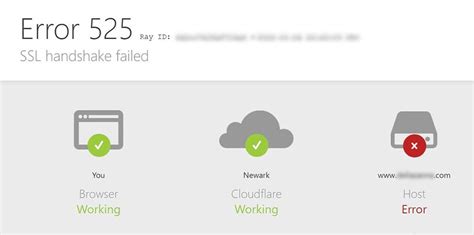
When you visit a website that uses SSL (Secure Sockets Layer) for encryption, a process known as the SSL handshake occurs. During this handshake, the browser and the website server negotiate the security settings for the session. However, sometimes this process fails, resulting in Error Code 525. This guide will walk you through the steps to diagnose and fix the SSL handshake failed error code 525, ensuring your site's security and functionality are restored.
Understanding Error Code 525: SSL Handshake Failed
Error code 525 specifically indicates that Cloudflare, the service that provides a CDN (Content Delivery Network), detected an issue while trying to establish a secure connection between your server and your client’s browser. Usually, this error stems from incompatibilities between the SSL certificates installed on your server and the protocol version supported by the client or Cloudflare.
Common causes include:
- The SSL certificate on the origin server is incorrectly configured.
- Cloudflare's SSL/TLS settings don't match the server's settings.
- The server does not support the SSL/TLS version being requested by the client or Cloudflare.
Quick Reference
Quick Reference
- Immediate action item: Check the SSL certificate on your server to ensure it's correctly installed and valid.
- Essential tip: Review and match Cloudflare's SSL/TLS settings with those of your server to ensure compatibility.
- Common mistake to avoid: Overlooking the SSL/TLS version compatibility between your server and Cloudflare's requirements.
Step-by-Step Guide to Fix SSL Handshake Failed Error Code 525
Let's dive into a detailed, step-by-step process to fix the SSL handshake failed error code 525. This guide will cover everything from basic troubleshooting to more advanced fixes.
Step 1: Verify Your SSL Certificate
First, ensure your SSL certificate is correctly installed and configured. This includes checking for proper domain matching, expiration dates, and chain of trust issues.
- Check Domain Match: Ensure that the SSL certificate covers the domain you’re trying to access.
- Expiration Date: Make sure the certificate hasn’t expired.
- Chain of Trust: Verify that the certificate is correctly linked from your server to a trusted root authority.
Step 2: Inspect SSL/TLS Settings on Your Server
Next, review your server’s SSL/TLS settings. The server must support the SSL/TLS versions required by Cloudflare and the client. For example, if Cloudflare requires TLS 1.2, ensure your server supports it.
- Check Supported Protocols: Look at the SSL/TLS versions supported by your server (check your server’s configuration file).
- Update Protocols: If your server does not support necessary protocols, update your server configuration to include them.
Step 3: Align Cloudflare SSL/TLS Settings
To resolve the error, ensure Cloudflare’s SSL/TLS settings align with your server’s capabilities.
- Log into Cloudflare Dashboard: Access your Cloudflare account and go to the SSL/TLS settings for the affected site.
- Set SSL/TLS Mode: Depending on your server’s configuration, choose either “Full,” “Full (strict),” “Flexible,” or “Origin SSL,” and adjust protocols accordingly.
- Test Changes: After updating, test to see if the error persists.
Step 4: Troubleshoot Common Server Issues
Sometimes the server might not handle SSL handshakes properly. Below are some common server issues and their fixes.
- Firewall Settings: Check that your server’s firewall is not blocking necessary ports or protocols.
- Intermediate Certificate: Ensure all intermediate certificates are correctly installed if required.
- Reinstall Certificate: As a last resort, reinstall your SSL certificate on the server to rule out configuration errors.
Practical FAQ
What if I’m still getting Error 525 after making these changes?
If the issue persists, consider the following steps:
- Double-check all SSL certificate configurations and ensure there are no typos or mismatches.
- Ensure that no plugins or server configurations are conflicting with SSL settings.
- Check with your hosting provider for any known issues or additional configurations that might be required.
Fixing the SSL handshake failed error code 525 involves verifying and aligning your SSL certificates, server configurations, and Cloudflare settings. By following this guide, you can troubleshoot and resolve the issue effectively, ensuring your site’s security and usability remain intact.