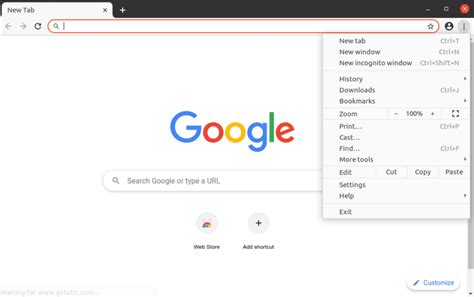
Navigating the internet efficiently often hinges on quick access to your favorite websites. Setting your homepage in Chrome to a site you frequent can save precious time and enhance productivity. In this guide, we’ll walk through a concise, expert-driven approach to easily set your homepage in Chrome in mere seconds.
Key Insights
- Setting your preferred website as the homepage improves your daily browsing efficiency.
- Chrome’s browser settings allow easy customization of homepage preferences.
- Using Chrome’s sync feature across devices ensures your preferred settings follow you.
Step-by-Step Guide to Set Homepage in Chrome
To begin with, the primary steps to set your homepage in Chrome are straightforward. Here’s how to do it quickly:- Open Chrome: Start by launching your Chrome browser.
- Access Settings: Click on the three vertical dots in the top right corner of the browser window to open the menu, then select 'Settings'.
- Navigate to On Startup: In the Settings page, scroll down to the 'On startup' section.
- Set Your Preferred Homepage: Here you will see an option that reads 'Open a specific page or set of pages.' Click on 'Add a new page'.
- Enter Your URL: Type in the URL of the website you want to set as your homepage.
- Save Settings: Your preferred page will now appear in the list. You can reorder by dragging and dropping if multiple pages are set.
Benefits of Setting a Homepage in Chrome
Configuring your homepage in Chrome streamlines your workflow significantly. For instance, if your primary site is a news portal, having it as your homepage means you wake up to the latest headlines without any additional clicks. This saves time and ensures that your first browsing experience is tailored to your interests.
Ensuring Consistency Across Devices
Chrome’s robust sync feature allows you to maintain your personalized settings across multiple devices. By signing into Chrome with your Google account, your homepage settings, passwords, and even bookmarks synchronize seamlessly. This ensures you have a consistent browsing experience whether you’re on your laptop or smartphone.
Can I set multiple homepages in Chrome?
Yes, you can set multiple pages as your homepage by adding them under the 'Open these pages' section in Chrome settings. Simply drag and drop to prioritize which page appears first.
How do I reset my Chrome homepage to the default?
To reset your Chrome homepage, go to 'Settings', find the 'On startup' section, and select 'Open the New Tab page'. This restores Chrome to its default behavior.
Setting your homepage in Chrome effectively tailors your web experience, enhances speed, and ensures that your most-used sites are just a click away. With Chrome’s sync capabilities, these preferences follow you across devices, providing a cohesive browsing experience wherever you go. By following the simple steps outlined, you can enjoy a more personalized and efficient web browsing experience in no time.