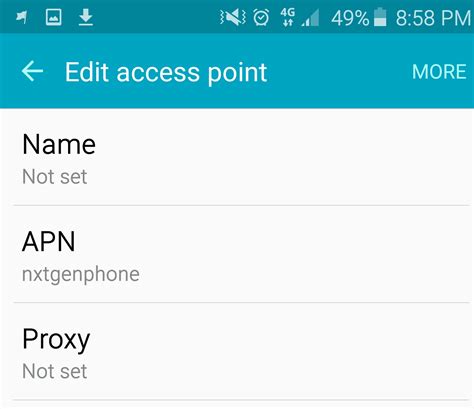
Are you struggling to maintain a stable internet connection on your mobile device using AT&T’s network? Are you frustrated by slow speeds or intermittent connectivity issues? You’re not alone. Many users face these challenges, but the good news is that by configuring the Access Point Name (APN) settings correctly, you can unlock the full potential of your device’s connectivity. This guide provides step-by-step guidance to help you configure your AT&T APN settings with actionable advice, real-world examples, and a problem-solving focus that targets your specific pain points.
Unlock Perfect Connectivity: Simple Guide to Att Apn Configuration
Setting up the right APN settings can significantly enhance your mobile data experience. The Access Point Name (APN) is a gateway between your device and the internet, and configuring it correctly can resolve numerous issues like slow speeds, dropped connections, or complete lack of internet access. This guide will walk you through everything you need to know to ensure your device is set up for optimal performance on AT&T’s network.
Why Configuring APN Settings Matters
APN settings act as instructions for your device on how to connect to the cellular data network. Each carrier, such as AT&T, has specific APN settings that must be inputted correctly for optimal performance. Incorrect settings can lead to a variety of problems:
- Slow internet speeds
- Frequent disconnections
- No internet access at all
Getting the APN settings right is often a simple fix that can make a big difference in your mobile data experience.
Quick Reference
Quick Reference
- Immediate action item: Navigate to your phone’s settings to access the APN settings menu. This is a crucial first step to resolving connectivity issues.
- Essential tip: Double-check the APN settings against the AT&T official guidelines to ensure accuracy. Small typos can cause big problems.
- Common mistake to avoid: Not saving the changes after entering new APN settings. This is a frequent error that can prevent your changes from taking effect.
Step-by-Step Guide to Configuring AT&T APN Settings
Let's dive into the step-by-step process to configure your APN settings for AT&T. This guide covers different mobile devices, including iOS and Android.
For iOS Devices (iPhone)
Configuring APN settings on an iPhone involves navigating through a few menus. Here’s a straightforward process:
- Open Settings: Start by opening the Settings app on your iPhone.
- Mobile Data: Scroll down and tap on Mobile Data.
- Mobile Data Options: Next, tap on Mobile Data Options.
- APN: You will see a list of current APN settings. To add a new one, tap on Add APN.
- Enter AT&T APN Settings:
Field Value APN att.mvso APN Type default, mms APN Protocol IPv4/IPv6 MVNO Type None Username (Leave blank) Password (Leave blank) APN Roaming Protocol IPv4 - Save: After entering the above details, tap Save to save the new APN settings.
For Android Devices
The process for Android devices is similarly straightforward but can vary slightly depending on the device model and manufacturer. Here’s a generic guide:
- Open Settings: Open the Settings app on your Android device.
- Network & Internet: Navigate to Network & Internet or Connections.
- Mobile Networks: Tap on Mobile networks.
- Access Point Names: Tap on Access Point Names (APNs).
- Add New APN: Tap on the three-dot menu (usually top right) and select New APN or Add APN.
- Enter AT&T APN Settings:
Field Value APN att.mvso Name AT&T APN Type default,mms MCC 310 MNC 410 APN Protocol IPv4/IPv6 APN Roaming Protocol IPv4 Authentication Type None APN Enablement Automatic - Save: Tap Save to apply the new APN settings.
Advanced Tips and Best Practices
After configuring your APN settings, here are some advanced tips to ensure optimal performance:
- Restart Your Device: Restarting can help the new settings to take effect properly.
- Check Signal Strength: Ensure you are in an area with good AT&T network coverage.
- Reset Network Settings: If issues persist, try resetting your network settings to factory defaults (note that this will remove all saved Wi-Fi networks).
- Contact AT&T Support: If problems continue, consider reaching out to AT&T support for further assistance.
Practical FAQ
What if I make a mistake in entering the APN settings?
If you make a mistake while entering the APN settings, simply navigate back to the APN settings menu and delete or modify the incorrect settings. To prevent typos, it’s useful to have the correct APN details from a reliable source, such as AT&T’s official website or customer support.
Can I use these APN settings on other carriers?
No, these APN settings are specific to AT&T. Different carriers have unique APN settings to ensure proper connectivity. Always use the settings provided by your specific carrier.
How often do AT&T APN settings change?
Carrier settings, including APN configurations, typically do not change frequently. However, it’s a good idea to check with AT&T periodically if you encounter connectivity issues, especially after a major update to your device’s software.
By following this comprehensive guide, you can ensure that your device is correctly configured to leverage the full speed and stability of AT&T’s network. Remember, the key is to enter the APN settings accurately, save them, and allow time for any changes to take effect. Happy browsing!